How to Actually Use the 107 Chem+ Calculators (A Practical Walkthrough)
Here's a number that surprises most people the first time they open Chem+: 107. One hundred and seven separate chemistry calculators, sitting in a single dashboard, free to open. But a library that big is useless if you can't find the tool you need and get an answer in seconds. So let's do the opposite of a feature list — let's actually use one, step by step, and cover the habits that make all 107 fast.
Finding the right calculator in under ten seconds
You have three ways in, and the fastest one depends on how you think:
- Search by name. Open Modules → Calculators and type what you want — "molarity," "pH," "limiting reagent." The list filters as you type.
- Browse by category. Every calculator is filed under a chemistry category — Acid-Base, Solutions, Stoichiometry, Thermodynamics, Gases, Electrochemistry, and more. If you know the neighborhood but not the exact tool, click the category pill and scan.
- Search from the homepage. The main search bar on the Chem+ homepage indexes calculators too, so you can jump straight from the landing page to the exact tool.
Anatomy of a calculator
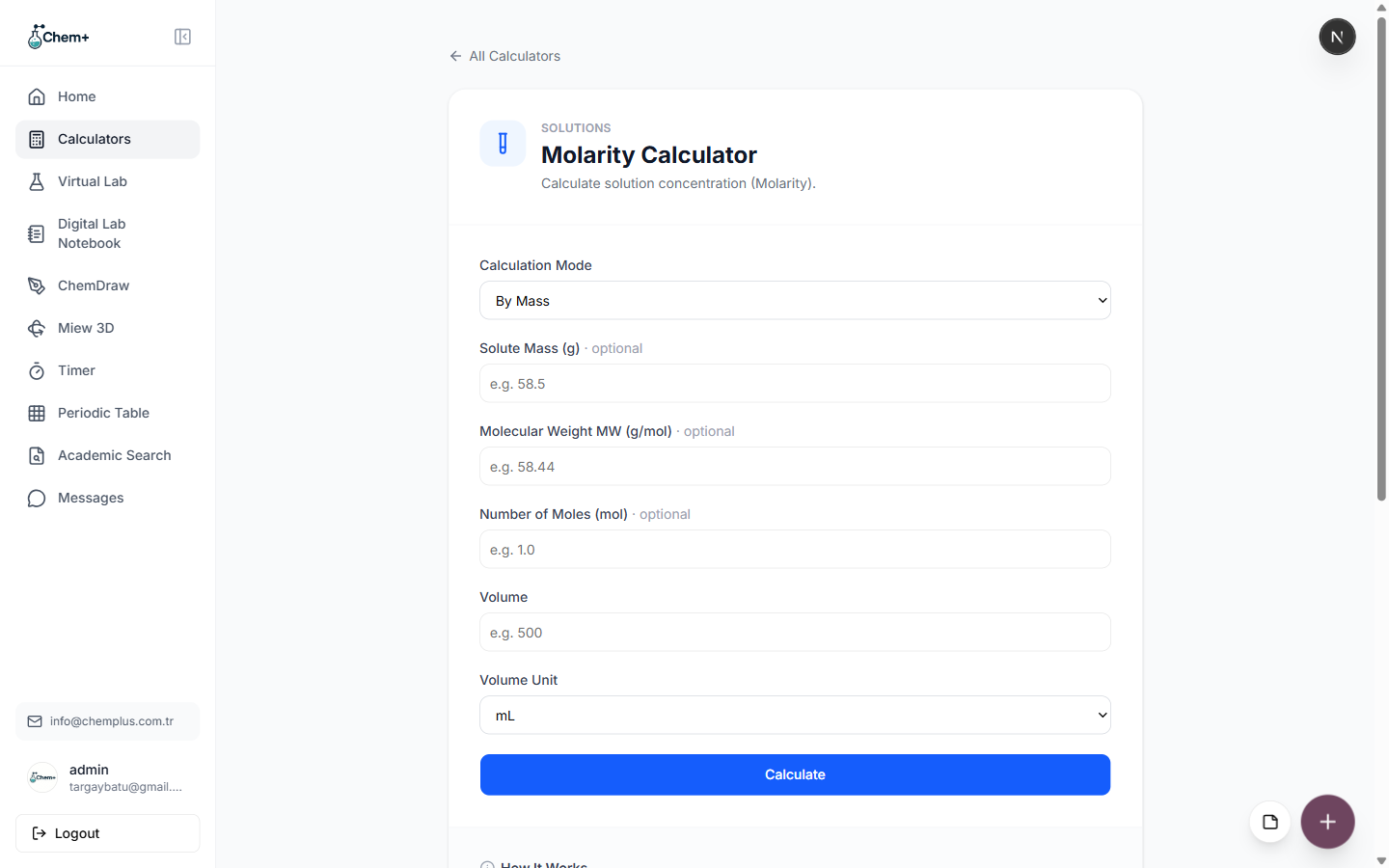
Every calculator follows the same layout, so once you've used one, you've used all of them. Take the Molarity Calculator as an example. At the top is the calculator's category and a one-line description of what it does. Below that is a Calculation Mode selector — many calculators solve for more than one unknown, so you pick which variable you're after (for molarity: by mass, or by moles).
Then come the inputs. For molarity by mass, that's Solute Mass, Molecular Weight, Number of Moles, Volume, and a Volume Unit dropdown. Notice that several fields are marked optional — the calculator figures out which values it needs based on what you give it, so you're never forced to enter a number you don't have.
The part that changes how you work: no submit friction
Most calculators compute the moment you have enough inputs — many update live as you type, so you can watch the answer move as you adjust a value. Some, like the TDS calculator, use an explicit Calculate button. Either way there's no page reload and no waiting. That sounds minor until you're running the same calculation across ten samples: live recalculation turns a ten-minute chore into a thirty-second one.
Read the "How It Works" panel at least once
Under most calculators is a "How It Works" section that spells out the exact formula being applied and the assumptions baked in. The TDS calculator, for instance, shows you TDS (mg/L) = EC (µS/cm) × k, explains that the conversion factor k defaults to 0.64 for natural waters, and notes that it won't compute a negative result because TDS can't physically be negative. This matters: a calculator that hides its formula is a black box, and you should never report a number from a black box. Chem+ shows its work.
Do something with the answer
The reason the calculators live in the same dashboard as everything else is so the answer doesn't dead-end:
- Copy it, or export the result as CSV or JSON where the calculator supports it.
- Drop the number straight into a figure as a label, since ChemDraw and your figures are one click away.
- Log it in the Digital Lab Notebook alongside the experiment it belongs to, so six months from now the result and its context are still together.
The three-habit summary
If you remember nothing else: search by name to find a tool fast, trust the "How It Works" panel to know what you're computing, and keep the result in the system instead of copying it into a lonely spreadsheet. Do that and 107 calculators stop being a list and start being the fastest part of your day.